How SendAPhoto works
Three steps to move photos and videos from your phone to any computer — no install required for whoever is receiving in a browser.
1. Open the app and find the device
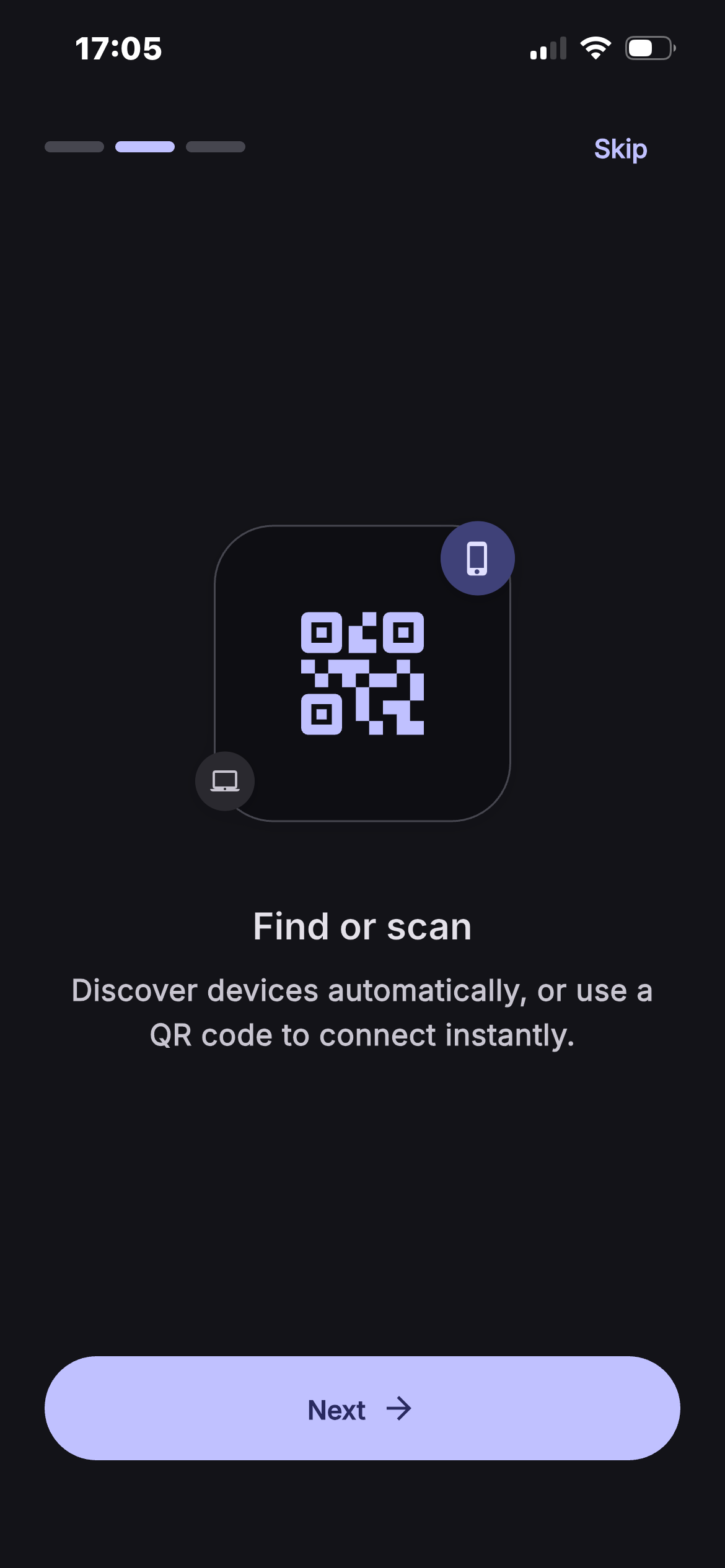
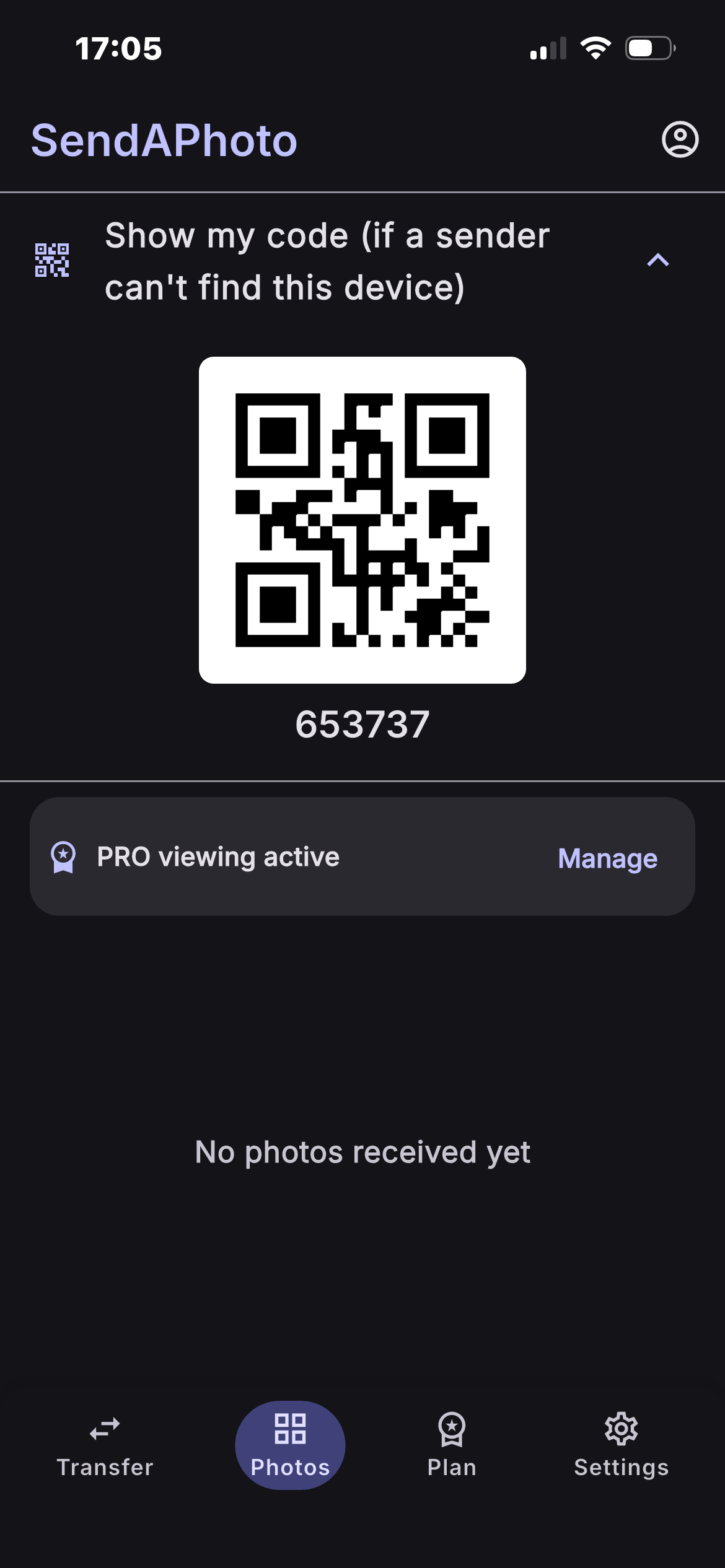
Open SendAPhoto on your phone: it automatically looks for other devices on the same Wi-Fi network using local network discovery (mDNS). If it can’t find one, you can pair manually with a 6-digit code or by scanning a QR code shown on the receiving device.
2. Select photos and videos
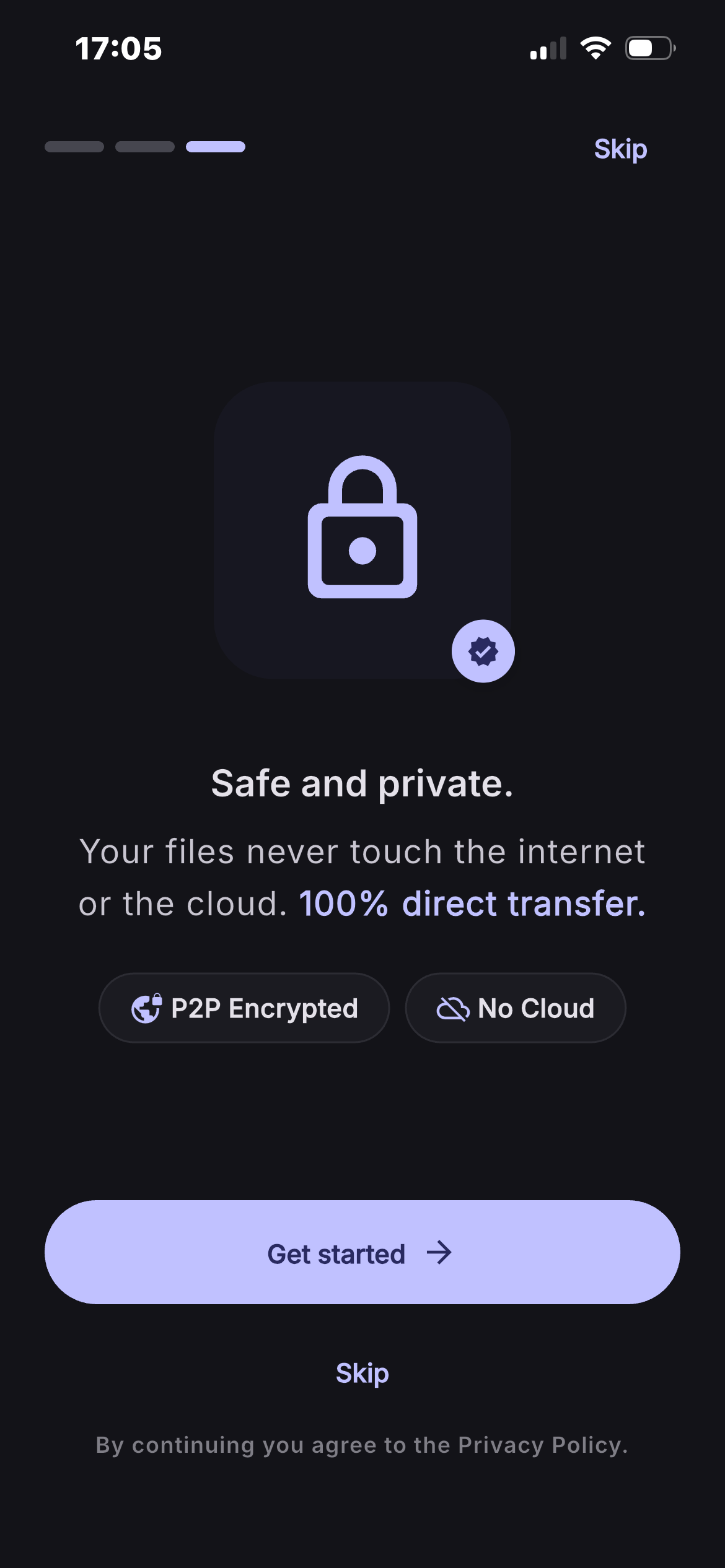
Pick what you want to send from your gallery — even hundreds of files at once. The transfer is direct, device-to-device: files only ever travel between the two devices involved, never through an external server.
3. Receive, verified byte for byte
Every file arrives with a checksum (SHA-256): if the connection drops halfway through, it resumes exactly where it stopped once reconnected, instead of starting over.
Receive in a browser, nothing to install
Need to receive on a computer that doesn’t have — or shouldn’t need — the app installed? Just open sendaphoto.app/connect in any modern browser. The page shows a pairing code and a QR code: scan it with your phone, or type the code in, and your photos arrive directly in the browser over a direct connection (WebRTC) — still with no cloud involved. In this version, the page is receive-only, not for sending from a browser.
- Open sendaphoto.app/connect on any computer
- Scan the QR code with your phone, or type the code shown on screen
- Photos arrive right away, nothing to install
A note about your Wi-Fi network
Both devices need to be on the same local Wi-Fi network, and it needs to be a normal, unrestricted network. Some hotel, airport, or office networks isolate devices from each other (client isolation) — in those cases automatic discovery and code pairing may not work.